
The Best Mac Files Search Tool: Find Any File on Your Mac Instantly
TL;DR: If you're tired of Spotlight failing to find what you need, this guide covers the best Mac files search tool options — from built-in macOS tricks to powerful third-party tools. We'll show you how to find files on your Mac by name, content, and even text inside screenshots.
Why You Need a Better Mac Files Search Tool
Every Mac user has been there: you know the file exists. You saved it yesterday. But when you type its name into Spotlight, nothing shows up.
macOS's built-in search is decent for basic needs, but it falls short when you need to:
- Search inside files by content keywords
- Find text inside images and screenshots
- Search across clipboard history for something you copied hours ago
- Quickly locate apps, files, and folders from one place
That's where a dedicated Mac files search tool comes in. The right tool turns a 30-second hunt into a 2-second keystroke.
1. Built-in macOS Search: When It Works and When It Doesn't
Spotlight Search (⌘ + Space)
Spotlight is Apple's native search engine for your Mac. It indexes:
- File names
- Email messages
- Calendar events
- App names
- Web suggestions
The problem? Spotlight doesn't search inside file content reliably. It can't find text inside images, and it doesn't index your clipboard history at all. For power users, it's a starting point, not a solution.
Finder Search (⌘ + F)
Finder's search is more powerful than Spotlight for file-specific queries. You can filter by:
- File type (PDF, Word, image, etc.)
- Date modified
- File size
- Tags
But it's still limited to metadata and file names in most cases. Searching inside hundreds of PDFs for a specific phrase? That's a slow crawl.
2. The Best Mac Files Search Tool Compared (2026)
After testing the top contenders, here's how they stack up:
| Tool | Content Search | Image OCR | Clipboard Search | App Search | Price |
|---|---|---|---|---|---|
| Timo | ✅ Yes | ✅ Yes | ✅ Yes | ✅ Yes | Free |
| FindAnyFile | ✅ Yes | ❌ No | ❌ No | ❌ No | $6.00 |
| FileMinutes | ✅ Yes | ❌ No | ❌ No | ❌ No | $10.00/month |
| EasyFind | ✅ Yes | ❌ No | ❌ No | ❌ No | Free |
| HoudahSpot | ✅ Yes | ❌ No | ❌ No | ❌ No | $39 |
🏆 Best Overall: Timo — The Swiss Army Knife of Mac Search
Timo is more than just a Mac files search tool — it's a complete productivity toolkit. Here's what makes it stand out:
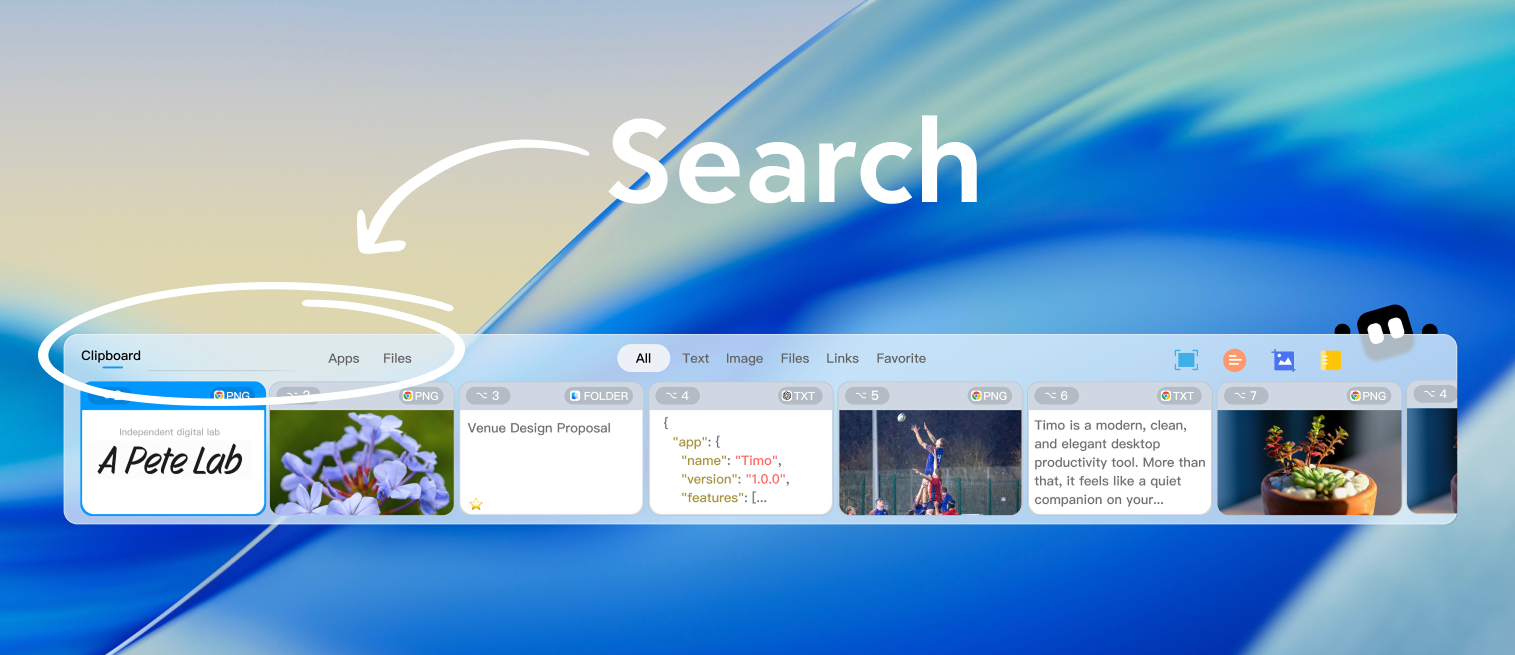
🔍 Universal Search
Search everything from one place: files, apps, folders, and clipboard history. Just type what you need and Timo finds it instantly.
📄 Search Inside File Content
Unlike basic file finders, Timo searches the actual content of your documents. Looking for a specific paragraph in a PDF or a line in a text file? Timo finds it.
🖼️ OCR-Powered Image Search
This is the killer feature. Timo uses on-device OCR to find text inside images and screenshots. Remember that screenshot you took last week with an important phone number? Timo can find it by searching the text inside the image.
📋 Searchable Clipboard History
Ever copied something and lost it? Timo keeps your clipboard history organized and searchable. Every text, image, link, and file you've copied is available at your fingertips.
⚡ App Search
Double-press the ^ key to open your 20 most recently used apps. Search and launch any app in seconds.
💰 Free to Start
The free version of Timo includes full core search capabilities: content search, image OCR, clipboard history, and app search—100% free with no limits. Pro adds cloud sync and unlimited history if you need it.
2. FindAnyFile
FindAnyFile is a straightforward file search tool that focuses on one thing: finding files by name and content. It's fast and reliable, but it doesn't offer clipboard search, OCR, or app launching.
- Pros: Fast, simple interface, affordable one-time purchase
- Cons: No OCR, no clipboard search, no app search, dated UI
3. FileMinutes
FileMinutes is a subscription-based file finder that indexes your entire Mac. It supports content search but lacks the broader productivity features that make a tool truly useful.
- Pros: Good content indexing, clean interface
- Cons: Monthly subscription, no image search, no clipboard features
4. EasyFind (Free)
EasyFind is a free alternative that doesn't rely on Spotlight's index. It searches file content directly, which can be useful for finding files that Spotlight misses.
- Pros: Free, doesn't require indexing, finds hidden files
- Cons: Slow on large drives, basic interface, no extra features
3. How to Choose the Right Mac Files Search Tool
Ask yourself these questions:
| What you need | Best choice |
|---|---|
| Find files by name only | Spotlight (free, built-in) |
| Search inside document content | Timo or FindAnyFile |
| Find text in screenshots/images | Timo (only tool with OCR) |
| Recover copied text from hours ago | Timo (clipboard history) |
| Launch apps quickly | Timo (app search) |
| Free solution | Timo (free tier) or EasyFind |
Bottom line: If you only need basic file search, stick with Spotlight. But if you want a Mac files search tool that also handles clipboard history, image OCR, and app launching — all in one free app — Timo is the clear winner.
4. How to Find Files on Mac: Quick Tips
Even with the best tool, these tips will make you faster:
Use Smart Search Queries
type:pdf invoice— Find all PDFs with "invoice" in the namedate:today report— Files modified today with "report" in the namekind:image screenshot— Find image files with "screenshot" in the name
Set Up Quick Access
Configure your Mac files search tool to show your most frequently accessed folders first. In Timo, frequently searched locations are automatically prioritized.
Search by Content, Not Just Name
The most powerful habit: search by what's inside the file. If you wrote a report mentioning "Q3 revenue growth," search that phrase instead of guessing the file name.
Frequently Asked Questions
What is the best free Mac files search tool?
Timo is the best free option. It offers file search, content search, clipboard history, app search, and screenshot tools — all in the free tier. No other free tool comes close to this feature set.
Can I search inside images on Mac?
Yes, but only with Timo. It uses on-device OCR to recognize text inside images and screenshots, making them searchable. This is a feature that even paid tools like FindAnyFile and FileMinutes don't offer.
How do I find a file I saved yesterday?
With Timo, you can search for it by name, content, or even text that appeared in the screenshot you took of it. The clipboard history also helps — if you copied any part of that file, it's still there.
Is there a Mac files search tool that works offline?
All the tools mentioned in this guide work fully offline. Timo's OCR runs locally on your Mac — no data is uploaded to any server.
How is Timo different from Spotlight?
Spotlight is a system-wide search that indexes file names, emails, and apps. Timo goes further by searching inside file content, recognizing text in images with OCR, maintaining a searchable clipboard history, and offering app search with a recent apps launcher.
Conclusion: Stop Hunting, Start Finding
A good Mac files search tool saves you hours every week. Whether you're a developer hunting for config files, a designer searching through screenshots, or a writer looking for that one paragraph you wrote last month — the right tool makes all the difference.
Timo is the only tool that combines file search, content search, OCR-powered image search, clipboard history, and app search into one free app. It's the all-in-one productivity toolkit your Mac deserves.
No credit card required. Runs on macOS 14 or later (Apple Silicon & Intel).